
Introduction
This guide will walk you through the process of integrating websites with MyMedLeads using Zapier, a third-party automation platform. If your website or ad platform can post data via Zapier, you can take advantage of our no-code-required solution to streamline lead capture.
Zapier acts as a bridge between web applications, enabling them to communicate and automate workflows. It operates on a trigger-and-action model: a trigger is an event in one app (such as a new lead submission), and the action is the resulting task performed in another app (such as sending that lead to MyMedLeads).
Intended Audience
This guide is designed for webmasters, developers, or anyone familiar with using Zapier. Basic knowledge of form setup and Zapier’s interface is recommended to successfully complete the integration.
Please note that this is a third-party platform and isn’t owned/managed by MyMedLeads. For security reasons, since Zapier access includes billing information, MyMedLeads can’t log in for you or complete this on your behalf.
Integration Requirements Using Zapier
To successfully integrate your website with MyMedLeads via Zapier, please ensure the following requirements are met:
- Zapier Account Access
You must have an active Zapier account, https://zapier.com/. Please note that Zapier is a paid service, and charges may apply. - MyMedLeads Transaction Key
This key is required for integration and identifies the Lead Source (EX: Facebook Ads) and your account. To retrieve your Transaction Key, follow these steps within your MyMedLeads account:- Log in to MyMedLeads.
- Navigate to Preferences > Edit LeadSources.
- On the LeadSources screen, you’ll see a list of available sources or you can add a new Lead Source at this time.
- Next to each Lead Source, there is a green key icon. Click on this icon to view the Transaction Key associated with that Lead Source.
- Compatible Platforms
The websites or platforms you wish to integrate must support Zapier. This includes popular ad platforms like Facebook Ads and Bing Ads, which can send data directly into Zapier. - Form/Ad Configuration
Setting up your website forms or ad platforms to send data to Zapier is the responsibility of your team. Due to the wide variety of tools (e.g., ContactForm7, Gravity Forms, Facebook Ads), this guide does not include platform-specific instructions. For help with setup, we recommend referring to Zapier’s documentation or the relevant plugin guides.
Zapier Integration Implementation
Once your team has configured your website or ad platform to send data to Zapier, you can proceed by adding a Webhook step to your Zap that utilizes POST. On the configuration screen, you’ll enter a URL (provided by MyMedLeads upon request) and begin mapping your form or ad data to specific Variable Names recognized by MyMedLeads.
Step 1: Connecting to the Form You Want to Integrate
To begin integrating your form or ad platform with Zapier:
- Log into your Zapier account.
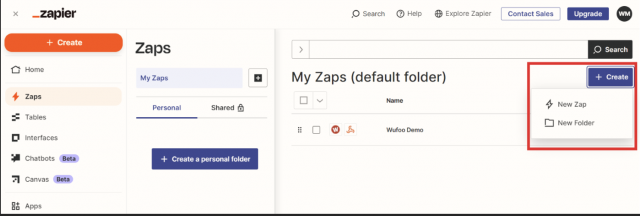
- Click Create, then select New Zap.
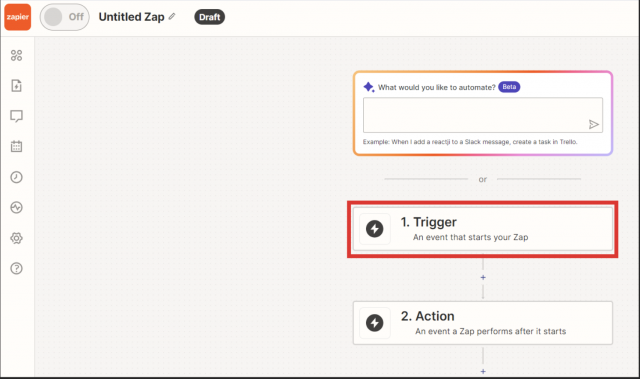
- Under Trigger, search for the platform you wish to integrate (e.g., Instagram Ads).
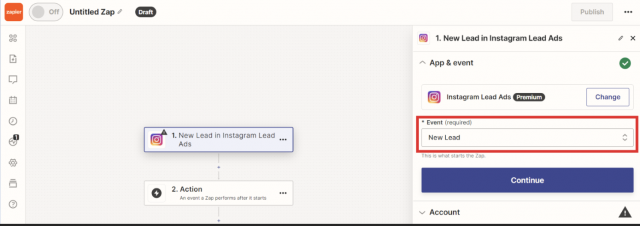
- Select the appropriate Event, such as New Lead, then click Continue.
- Sign into the website or social media account you want to connect.
- From the Pages dropdown, choose the page you want to integrate.
Note: If you have multiple pages, you’ll need to create a separate Zap for each one.
From the Form dropdown, select the contact form you want to integrate.
Note: If your page has multiple forms, you must either create a separate Zap for each form or select “Default (any form)” to capture all submissions.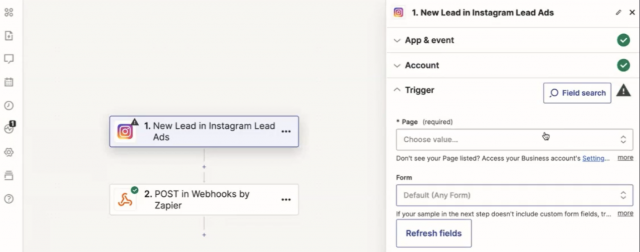
- Click Test Trigger to confirm the connection.
- Once the test is successful, click Continue with selected record.
- Under the Post section, select Continue to proceed to the next step.
Step 2: Data Variable Setup
In your Zapier action step, you’ll see a Data section. This is where you add lead fields like name, email, and phone number. You can add as many fields as needed. Each field has two parts:
- Variable Name – the exact name MyMedLeads expects
- Data Source – the data Zapier pulls from your form (this is sometimes auto‑filled)
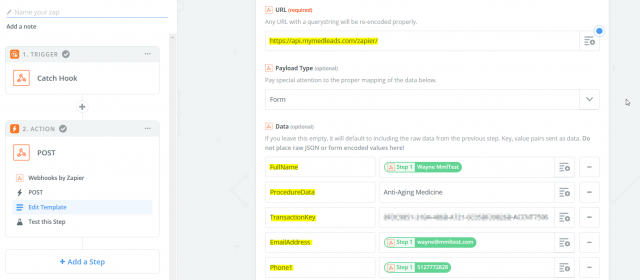
When setting up your Zap to send lead data to MyMedLeads, you’ll map your form fields to specific Variable Names that our system recognizes. Using the correct Variable Names is required for MyMedLeads to successfully receive and process each lead. Only the Variable Names provided by MyMedLeads should be used. If a Variable Name is misspelled, formatted incorrectly, or does not match exactly, the data may not be captured. Using the correct names ensures your lead data is read and processed correctly by the system. Examples Fields:
- FirstName → lead’s first name
- EmailAddress → lead’s email
- Phone1 or Phone2 → phone number
Required Minimum Fields
While most variables are optional, the following fields are required to successfully create a lead:
- Transaction Key (see above under Website Integration Requirements for where to find this)
- FirstName and LastName or FullName
- At least one piece of contact info (phone1 or phone2 or emailaddress)
If any of these are missing, the lead may not be captured correctly.
Test before Publishing
Before turning your Zap live:
- Click Retest Step in Zapier
- Send test (dummy) data to MyMedLeads
- Confirm the test lead is received successfully
- Once confirmed, click Publish
Testing helps ensure your data is mapped correctly before real leads are sent.
Supported Variable Names (No Spaces)
- FirstName
- LastName
- FullName (optionally used if First and Last are not available)
- EmailAddress
- Phone1
- Phone2
- StreetAddress
- City
- StateName
- PostalCode
- DateOfBirth
- Comments
- IsMale (please send in ‘true’ or ‘false’)
- ProcedureData (this can be the Name of the Procedure)
- Note: It is required that you spell the name of the procedure exactly like it appears within MyMedLeads. Alternatively, you may pass in our proprietary Procedure Id (you must request this from the MyMedLeads support).
- ReferUrl (optional, URL pointing to what leads to your form)
- Note: If you are setting this up for Facebook Ads. Then include the “ReferUrl” with the value “ads.facebook.com.” This will capture the Leads as PPC/Facebook Ads.
- Captcha (optional, will turn OFF MyMedLeads SPAM filters. Set to ‘true’)