Manage Staff
Introduction
This document provides step-by-step instructions for common user management tasks, including resetting passwords, deleting users, and creating new user accounts.
Intended Audience
This can be any MyMedLeads user in an administrative role.
Creating New Users in MyMedLeads
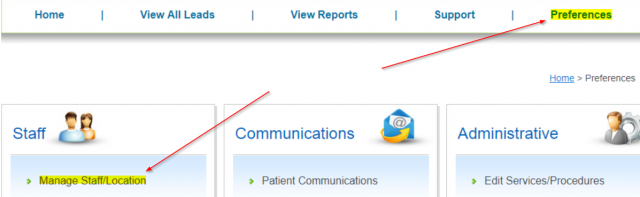
To create new users in MyMedLeads, go to the Preferences page and click the Manage Staff/Location link in the first column.
To Add a Doctor/Provider:
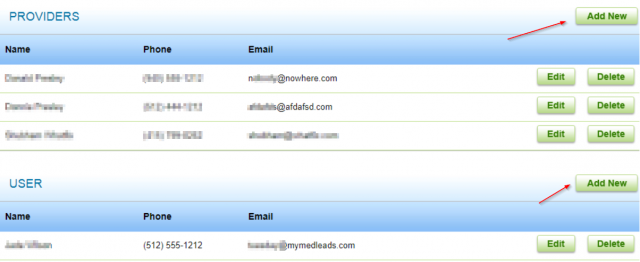
The first section of the Manage Staff/Location screen contains a list of the current doctors and providers linked to your account. An ‘Add New’ button in the top right corner allows you to add to this list.
To Add a Staff Member:
The second section of the Manage Staff/Location screen lists the current staff members in your account. To add a new user, click the Add New button in the top right corner. When adding a new user, you must fill in all required fields. The email address must be unique – it cannot be used for multiple users in the system.
Deleting Existing Users from MyMedLeads
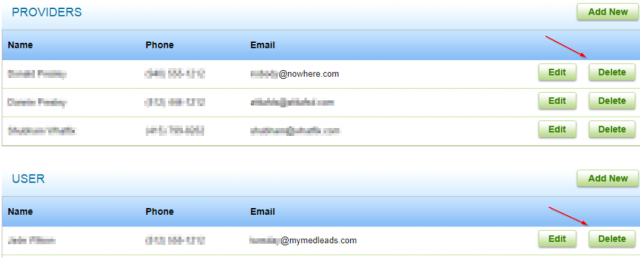
To delete users in your MyMedLeads account, go to Preferences -> Manage Staff/Locations. This page lists all Users and Doctors.
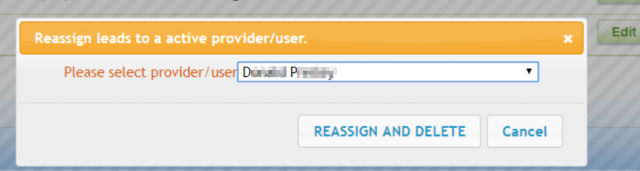
To delete a user, click the “Delete” button next to their name. A confirmation popup will appear. Before deleting the user, reassign any of their leads to an active user.
Once confirmed, the user is deleted and logged out of the system.