
Edit ROI Expenses
A valuable feature in MyMedLeads is the return on investment (ROI) reporting. This tool allows you to track the ROI for any advertising source you use. You can enter the expenses for each of your advertising investments and ongoing marketing campaigns. These expenses are then compared against the revenue generated through each lead source, giving you a clear picture of what’s working and what’s not. With these quantifiable statistics at your fingertips, you can make well-informed decisions about where to invest future advertising dollars.
First Setup your Lead Source Expenses
To accurately track your revenue, the first step is to set up your lead source expenses in MyMedLeads. Navigate to the Preferences section and select “Edit ROI Expenses.” This will take you to a page that displays a list of all your lead sources in MyMedLeads, allowing you to set up ROI tracking.

From Date / To Date
Specify the date range for the period during which you utilized the service linked to the lead source.
Frequency
You make payments towards the specific lead source at this frequency.
If you have an annual service contract but pay monthly, we recommend setting the frequency to an annually. This will prevent the need to update payment dates each month.
Expense Amount (In USD)
Here is where you will enter the cost per lead source, based on the frequency you are tracking.
If you have an annual service contract but pay monthly, we recommend entering the annual expense amount. This will prevent the need to update payment dates each month. For example, if you pay $250 per month for the “Google” lead source, multiplying that by 12 months gives you an annual expense of $3,000.
No. of Transactions
This feature tracks the number of transactions made through a specific lead source. For instance, if you pay for a service on a quarterly basis, you would have 4 separate transactions within a year.
Nextech and DrChrono integrated accounts
Both Nextech and DrChrono offer the ability to automatically pull revenue data from your accounts. The MyMedLeads system receives revenue data once daily in the afternoon. This is separate from the continuously running API that handles lead conversion to patients, updates patient status/funnel level, and triggers any automated emails/texts you’ve set up.
- To view a patient’s total revenue so far, click the “Procedure Complete” funnel level.
- To see individual transactions, click the plus (+) sign.
Note: We recommend against manually updating this data.
PatientNOW and Symplast integrated accounts
These two do not offer the ability to automatically pull revenue data from the account. You will need to follow the steps below to manually enter ROI into MML.
Manually enter ROI in MML for any record in Procedure Complete status
Step 1. Login to your account and access the funnel on the Home page, click the “Procedure Complete”
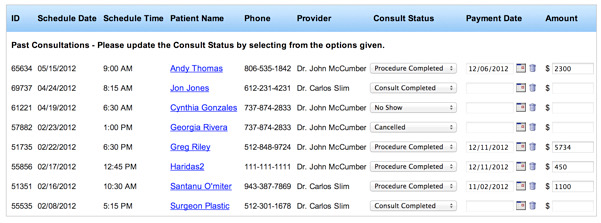
Step 2. Click on the plus (+) sign next to the patient’s name and Enter the new Payment Date and Amount. You can Repeat for other patients on the list as needed.
Step 3. Click “Save & Continue”
For non-integrated accounts, you can also update the appointment status and log revenue from the “Scheduled Consultations” and “Consult Completed” lists. Repeat the same process for each list.
Revenue Reporting
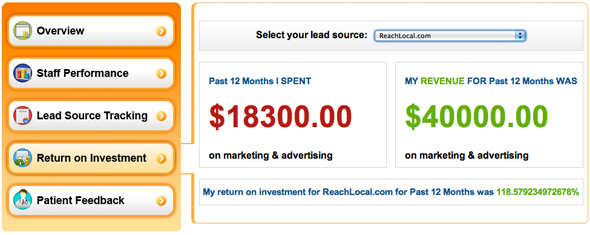
After entering patient revenue data in MyMedLeads, you can generate accurate Return on Investment (ROI) reports that detail the return for each of your lead sources.
View Report> Multiple Reports> Return on Investment – The Return on Investment report shows revenue broken down by lead source. However, you must first set up expenses by lead source in the Preferences > Edit ROI Expenses section.
View Report> Campaign Report – To view revenue associated with a specific campaign, go to the Campaign Report and click on the campaign name. You can also use the Date Range filter to refine the data in this report.