
DrChrono Integrations
Introduction
This guide will explain which DrChrono fields are transferred to MyMedLeads. It will also provide details on the specific fields that MyMedLeads can access.
Intended Audience
This document provides instructions for staff members who schedule patients in DrChrono. It covers how to optimize mappings of appointment types, procedures, and doctors/resources. The sections on using DrChrono’s resource functionality may be most relevant for power users of the system.
Lead Data
The information pulled from DrChrono and used in the MyMedLeads platform is demonstrated below. While the most common fields like FirstName and StreetAddress are not highlighted, the highlighted areas show which fields are communicated to MyMedLeads. These fields are easily identifiable and intuitively mapped to the corresponding MyMedLeads fields, making it straightforward to locate and utilize the values within MyMedLeads.
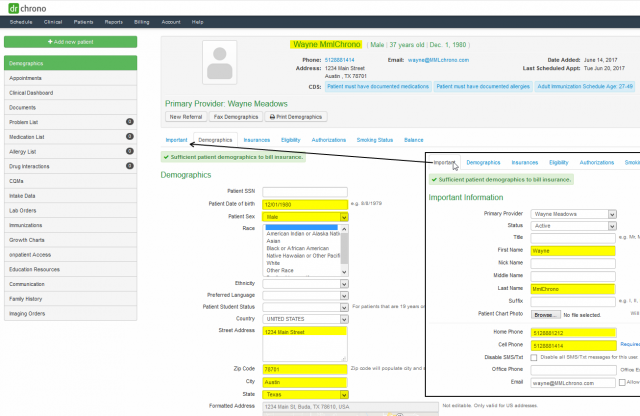
When converting leads to DrChrono, you must select a Provider. This Provider must also be synced with the Provider(s) listed within the DrChrono account. You can verify this by navigating to Preferences -> EMR Configurations and clicking “Manage Mappings” next to “Sync Providers”. In the Provider Mappings list, the Provider should have an entry with a number next to it. This number is the DrChrono ID for that Provider, and it is necessary to convert a lead to DrChrono. Contact your Account Executive for further assistance with syncing and mapping.
Appointment Data
Appointment data is gathered from various sources. When this data is sent to MyMedLeads, the associated patient demographics, including the ChartID, are also transmitted. The provided screenshot shows where MyMedLeads extracts appointment information from DrChrono. For details on how to create and update appointments to ensure MyMedLeads receives the necessary details, please review the information below.
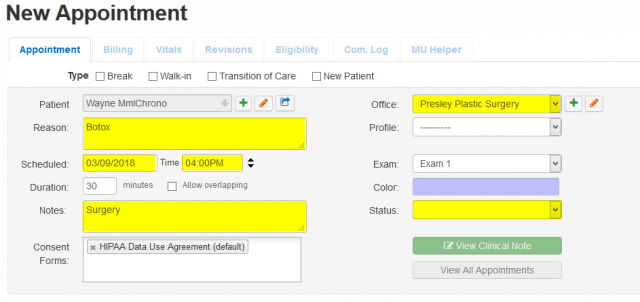
Practices that use DrChrono typically rely on the “Profile” field to select the Appointment Type and sometimes the Purpose. However, while this information is transmitted to MyMedLeads, it is not one of the fields we can process. Instead, we use the “Reason” and “Notes” fields to extract this data. Below, we outline the logic and configurations needed to pull the intended Appointment Types and Purposes from DrChrono.
Appointment Types
Please include the words “Surgery” or “Consultation” in the Notes field within DrChrono. Our system will then automatically categorize the appointment accordingly – if “Surgery” and “Completed” are detected, the lead will be routed to the Procedure Completed stage of the Sales Funnel.
Appointment Purposes and Reasons
The MyMedLeads system uses the “Reason” field to identify the type of procedure, surgery or consultation the patient is scheduled for. You can place the Procedure Name anywhere within the “Reason” field. You will need to inform our team about the procedures your practice needs to track. Typically, this information is directly tied to your Marketing Campaigns and Review/Testimonial/Feedback requests within MyMedLeads. We will request a list of procedure names from your staff to facilitate this process.
PLEASE NOTE THE FOLLOWING:
Concerning Appointment Types and Procedures
Your staff must manually enter “Surgery” or “Consultation” in the Notes field and the procedure name anywhere in the Reason field within DrChrono to detect Appointment Procedures and Types. You are then responsible for communicating this Naming Convention to your MyMedLeads Account Executive.
Deleting Appointments in DrChrono:
DrChrono does not automatically report deleted appointments to MyMedLeads. Instead, your team must manually cancel and then delete the appointment.
To reschedule an appointment, do not delete it and create a new one. Instead, simply update the appointment’s start time and date within DrChrono.